
Guide · sources checked 2026-10-01
ChatGPT Work
Ask ChatGPT to prepare a finished brief, document or spreadsheet from a clear set of inputs.
Official website · Explore agents
ChatGPT Work at a glance
Original illustrated explanations by PersonalAgents, based on the linked documentation.
Choose the place the work runs
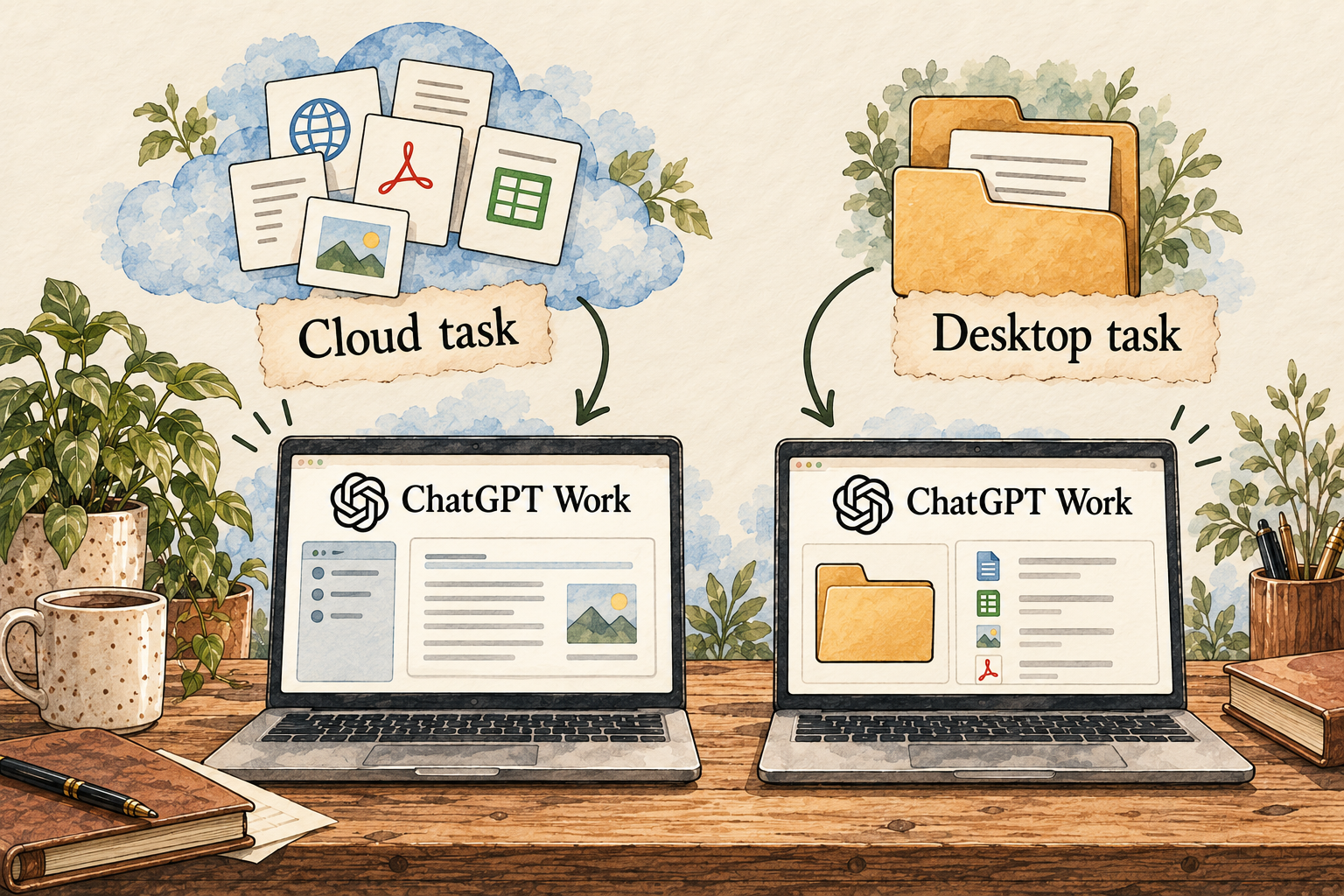
Image description
- Choose cloud or permitted desktop work.
- Supply only the inputs needed for the deliverable.
- Review the actual file and source links.
A practical guide to ChatGPT Work
ChatGPT Work is a way to ask ChatGPT for a finished piece of work rather than only an answer. The useful starting point is a clear deliverable, a small set of inputs and a decision about where the work should run. This guide separates cloud tasks, permitted desktop access, project context and the review needed before an output is shared.
Last checked 2026-10-01. Links to the original documentation appear throughout this guide.
How Work carries out an agent task
ChatGPT Work is an agent-capable work mode, rather than the same product as a continuing named dot. Choose Work instead of Chat, provide the source files or a project’s context, and describe the finished deliverable and review criteria. It can use available tools across the steps and return the document, spreadsheet, presentation or report for revision in the same task.
For example, supply three public vendor pages and ask Work to produce a comparison spreadsheet with source links and a short recommendation. Give the columns, preserve unanswered prices, and exclude account changes. Review the sheet against the pages, then request corrections to the same file. Eligible scheduled tasks can repeat or monitor changes, but availability and permissions still apply. This is a suggested assignment, not a trial we performed.
Choose a deliverable before choosing tools
Work handles longer tasks such as research and editable documents; Codex is the separate software-development experience.
Consider a public community-meeting agenda. A normal question might ask what one term means. A Work request could ask for a one-page briefing that identifies decisions, dates and unresolved items from that agenda. The difference is the output you want to inspect. Do not ask for every possible feature in the first task; ask for a useful file and explain how you will judge it.
A good brief includes audience, format, source material and boundaries. For example: prepare a neutral one-page summary for residents, use only the supplied public agenda, link the source, distinguish proposals from decisions, and do not send or publish anything. Those constraints give you something concrete to review. They are instructions to the agent, not proof that every conceivable action is blocked by a technical control.
Cloud work and desktop work have different inputs
Web and mobile Work run in the cloud. Desktop Work can use permitted local files and apps, while messages and task context may still be cloud-stored.
If the only input is a public agenda, a cloud task may be sufficient. A folder full of local drafts is a different case: decide which copies the task actually needs and give access to that bounded folder. Keep your source originals separate. Access to a computer is not an instruction to reorganize every folder, and local execution is not a promise that the entire data path stays on the device.
Do not confuse continuing a cloud task from a phone with remote access to a desktop task. Before relying on background work, confirm the place the task runs and whether the required files are available there. A result that needs a local app or folder has different prerequisites from a cloud report. This distinction matters more to a beginner than the name of the underlying model.
Use a project when the same material comes back
Projects collect related chats, files and instructions. Project instructions apply within the project and override global custom instructions there.
For a recurring community brief, keep the source agenda, the desired summary format and your corrections together. Give changing documents clear dates. If an old agenda remains among the sources, ask the agent to identify which version supports each claim. Organized context reduces repeated briefing, but it does not make an outdated file current.
A downloaded report is an output copy, a project file is an input or reference, and memory is another form of context. Keep those concepts separate when correcting or deleting information. If the report is wrong because a source was wrong, edit or replace the source and request a revised file. Merely editing the downloaded copy does not tell the agent what changed.
A first brief you can check line by line
Choose a short public agenda with a date, several items and at least one unresolved proposal. Ask Work for three sections: what is happening, dates to remember and questions still open. Request direct links or page references for each important statement. Keep the output to one page so review is practical. This is a suggested exercise, not a result from our own product trial.
Compare one decision, one date and one unresolved point to the original. Watch for a proposal being described as approved, a publication date being mistaken for an event date, or a missing condition changing the meaning. Then request a specific revision and open the revised artifact. A conversational acknowledgement is weaker evidence than a corrected file you can inspect.
If you want a table or spreadsheet instead, define the columns before the task starts. Ask for missing values to stay visibly unknown rather than be guessed. Check the actual format you intend to use; a table in chat and an editable spreadsheet are not interchangeable deliverables.
Add a schedule only after the first output is useful
Work supports scheduled or event-triggered tasks where available. Shared scheduled-task instructions do not transfer your credentials or local files.
A weekly brief needs a stable source, a useful change rule and a stopping condition. Decide whether an unavailable agenda should produce a short exception notice rather than a speculative replacement. Decide whether no change should mean no substantive update. Review an early run before making it routine, and inspect the prompt for private information before sharing task instructions.
A recurring task can repeat a misunderstanding more efficiently than a manual one. Review the task’s actual source, schedule and output destination when changing its purpose. Do not assume a correction in one chat has revised every existing schedule. If a task only runs on your computer, confirm the device requirements rather than assuming a shared cloud schedule can reproduce it.
Where Work is useful, and what still needs judgment
Work is a reasonable candidate when you already use ChatGPT and need a report, document or spreadsheet assembled from a bounded set of material. It is less compelling when a quick answer is enough. Evaluate the time you spend checking and correcting the artifact, not just how quickly the agent says it is finished.
For confidential workplace inputs, use the organization’s permitted account and ask the administrator about access and retention. For a task with outside consequences, review the actual audience, destination and effect. A well-written summary can still be wrong; an editable file can still contain broken formulas. The agent helps prepare work, while you remain responsible for deciding whether the output is fit for its intended use.
Answers to all 12 questions
Each answer explains what the official sources say and what that means in practice. “Evidence gap” means a detail we could not confirm; it does not automatically mean a feature is missing.
- Can I use it on my device and plan?
- What can it help me do?
- When does it ask my permission?
- How do I stop it or recover from a mistake?
- What does it remember?
- Can I change or delete its memory?
- Which apps can I connect?
- Where does my information go?
- Where does the agent run?
- What privacy controls do I have?
- What will it cost?
- How do I get started and find help?
1. Can I use it on my device and plan?
Work access depends on a paid plan, rollout and workspace permissions across web, mobile and desktop.
Check the Work option in your own account before subscribing for a particular task. A workplace role may permit cloud work but restrict desktop access. Ask the administrator about the specific capability you need rather than assuming every interface has identical access.
2. What can it help me do?
Use it to assemble research and editable deliverables from supplied material. A strong request names the file format, intended reader and evidence standard. For the agenda exercise, a dated one-page brief with unresolved questions is more useful than a long generic explanation of community meetings.
3. When does it ask my permission?
Review before the draft leaves your workspace
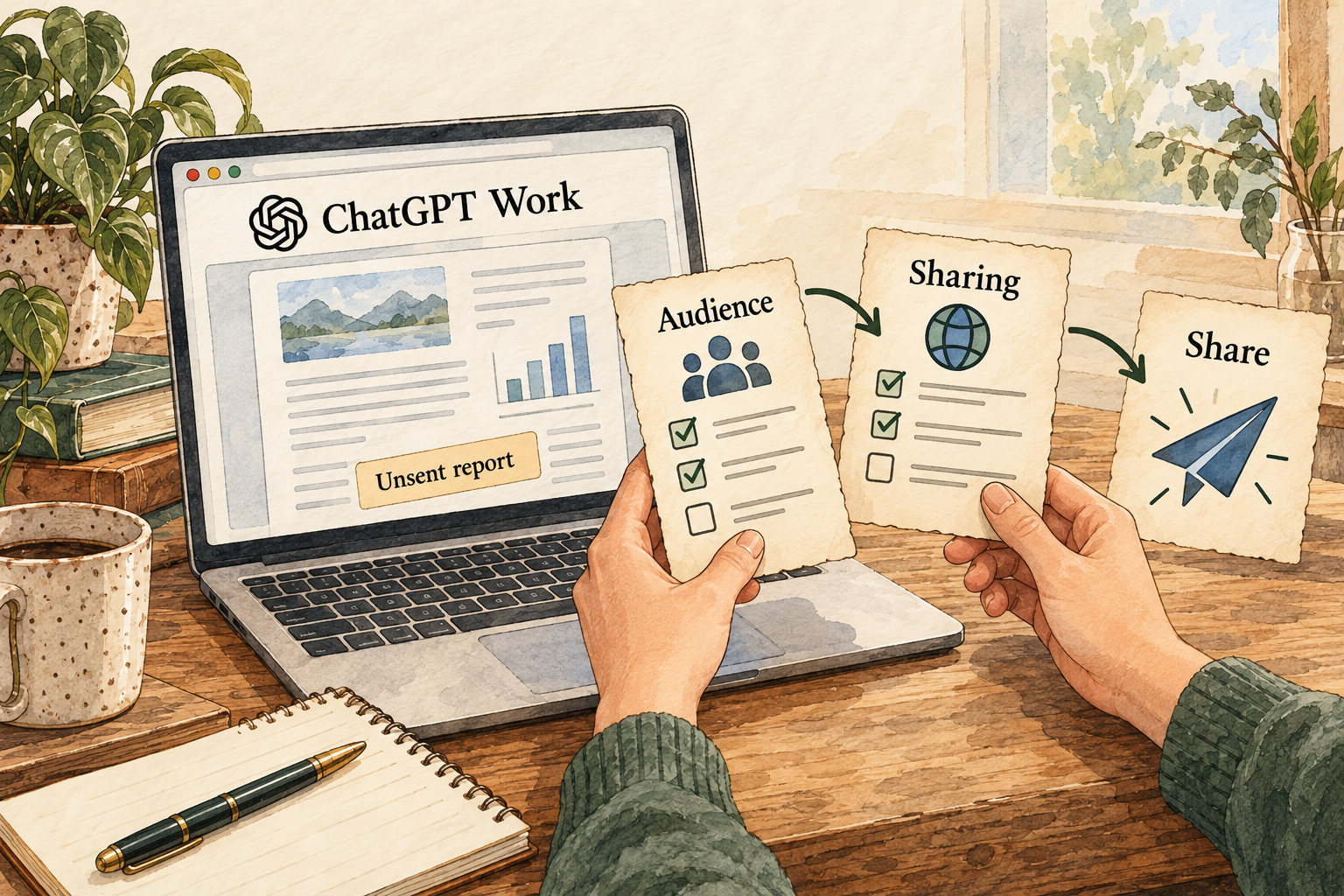
Image description
- Check the actual recipient and shared content.
- Review connected-app and workspace permissions.
- A draft is not authorization to send or publish.
Connected-app permissions and workspace controls still apply; important actions can require review.
The reviewed guide does not establish a complete approval list for every tool. Inspect what a request authorizes. Preparing a report should not quietly become permission to send it, publish it or modify the original sources.
4. How do I stop it or recover from a mistake?
What we could not confirm: A complete Work-specific undo and recovery matrix was not established by these sources.
Find the visible stop control before a trial and use disposable copies. If an output is wrong, preserve it and identify the mismatch before retrying. Check any affected service separately; revising a file cannot retract an outside message.
5. What does it remember?
Project context and saved files differ
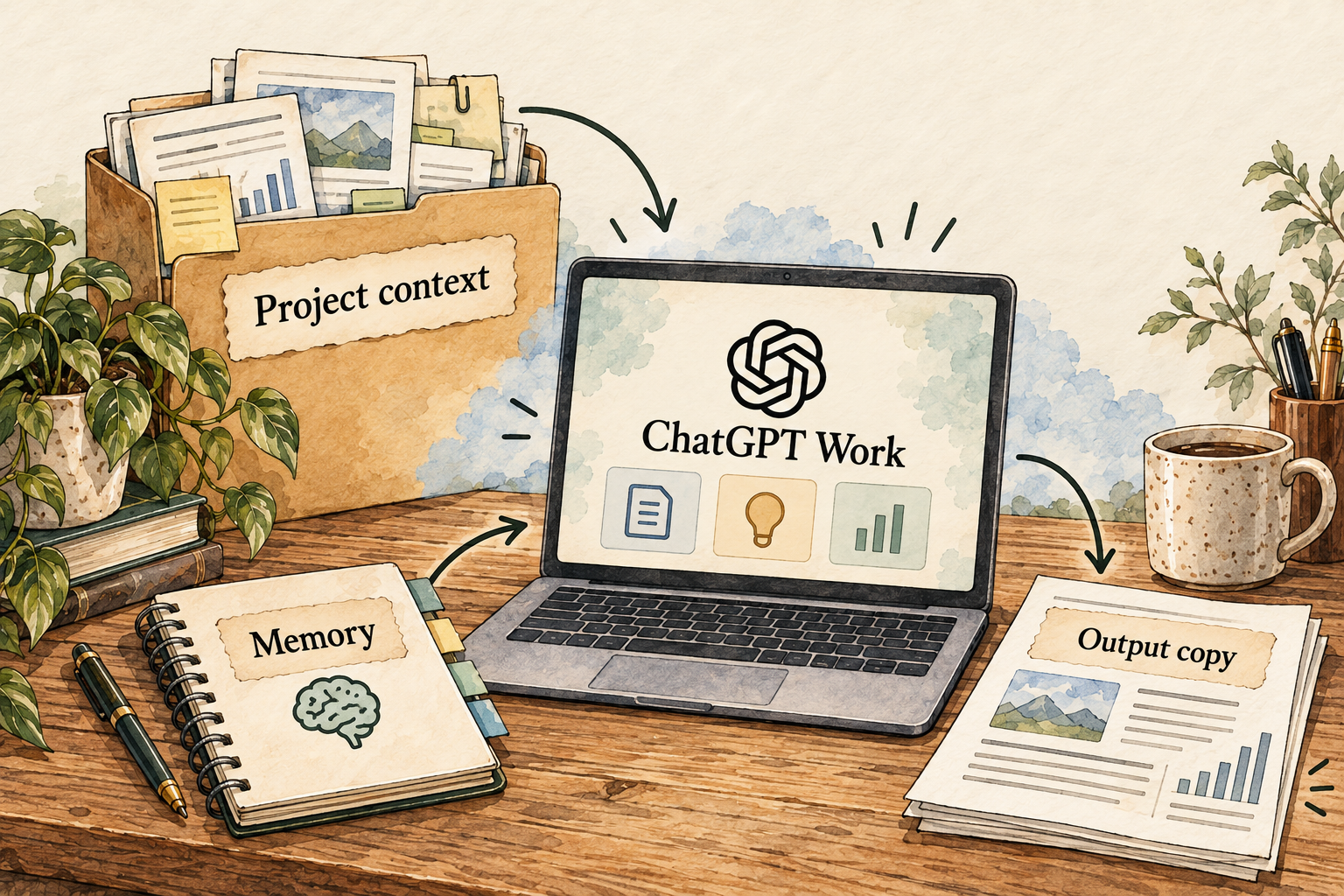
Image description
- Projects hold related sources and instructions.
- Memory settings and conversation history are separate controls.
- Downloading or deleting one copy does not resolve every other store.
ChatGPT Memory can draw on available chats, preferences and other sources; it does not preserve every detail.
Use project files for material that needs to be reopened precisely. Memory may help with preferred tone or format, but a changing date or price belongs in a dated source. Do not use a remembered summary as the only evidence for a consequential statement.
6. Can I change or delete its memory?
Memory settings support review and correction where available. Deleting a chat alone may leave separate remembered information.
Check the controls present in your account. Keep a list of where the detail appears: memory, chat, project file, Library or connected source. Disabling personalization is different from removing its underlying source, and deleting your downloaded copy does not address those stores.
7. Which apps can I connect?
Supported event triggers include connected Gmail, Slack and GitHub events, subject to eligibility and permissions.
Choose a connection because the task needs it. A public agenda exercise needs none of those accounts. Before enabling a trigger, read its condition and prompt so it does not start work on every unrelated message or expose private instructions in a shared task.
8. Where does my information go?
Local files and cloud-stored task context can coexist. For a folder task, identify the source folder, execution location and output copy. If your requirement is that all processing remain on-device, this guide does not establish a fully local Work configuration. Use public sample inputs until the data path is acceptable.
9. Where does the agent run?
Choose cloud Work for cloud-available inputs; choose permitted desktop work when the job actually needs your computer. Record that choice in the brief. A cloud task and a local task may look similar in conversation while depending on different files and device availability.
10. What privacy controls do I have?
Data controls separate model training, chat history and memory. Training opt-out does not delete saved chats; managed-workspace content is not used for training by default.
Read the settings for the account you will use, including workspace restrictions. Check sharing separately. If you give feedback, review the documented exception concerning associated conversation data rather than assuming every privacy choice has the same effect.
11. What will it cost?
ChatGPT Plus is US$20 per month at the documented base monthly rate.
That is a subscription starting point, not a guarantee of unlimited Work. Check the current allowance and any optional credit charges for your account. Compare a small completed task with its usage before deciding that a recurring workload fits the plan.
12. How do I get started and find help?
Start in the Work experience, attach one public input and describe the outcome, format and review criteria. Use the official help guide for the current interface. If local access is missing in a managed account, check the role permissions with the administrator; do not repeatedly grant unrelated access to solve an eligibility issue.
Things to check
- Exact Work tool-by-tool approval and recovery behavior needs account-level verification.
- Plan allowances, rollout and local access must be checked in the intended account.
- Owner interviews, actual Deep Research and exact-revision editorial approval are not recorded.
Try it yourself
These are suggested tasks to try, not tests we’ve run. Compare each result with the original information before relying on it.
- Prepare the public-agenda brief without connected private accounts.
- Compare dates and decision status to original passages, then request a revision.
- Verify the actual output file, visible stop control and usage before considering a schedule.
Sources reviewed
- ChatGPT Work and Codex · checked 2026-09-30
- What is ChatGPT Plus? · checked 2026-09-30
- Legacy agent-mode transition notice · checked 2026-09-30
- Projects in ChatGPT · checked 2026-09-30
- Memory in ChatGPT · checked 2026-09-30
- Data controls in ChatGPT · checked 2026-09-30
Research describes documentation available on the check date. Features, prices and access can change. No test result or personal endorsement is implied.